XML files are everywhere in mobile development—configuration files, API responses, build outputs, and documentation all rely on the XML format. But opening them on an Android phone? That's where things often go wrong. Many XML apps on the Play Store struggle with encoding, render blank screens, or corrupt the file structure when you try to edit. This guide walks you through the real challenges and solutions.
The Blank Screen Problem: Why Most XML Apps Show Nothing
You download an XML editor, open your file, and see... white space. Nothing. This is the single most common complaint in app reviews, and it usually comes down to two culprits: SAF (Storage Access Framework) misconfiguration and encoding mismatch.
SAF and File Selection
Starting with Android 11, the OS severely restricted direct file system access. Apps must use the Storage Access Framework (SAF) to request permission to a specific file or directory. Many XML editors fail here—they either don't implement SAF correctly or don't handle the file URI properly once the user picks it.
When SAF returns a file URI, you cannot simply open it like you would on desktop. The URI is wrapped, and you need to request
READ_EXTERNAL_STORAGEEncoding Hell
XML files declare their encoding in the first line:
<?xml version="1.0" encoding="UTF-8"?>But many editors hardcode UTF-8 and ignore the declaration. If your XML file is ISO-8859-1, CP-1252, or even UTF-16, the app will try to parse UTF-8, fail silently, and show nothing. The user sees a blank screen and assumes the app is broken.
The right way: Parse the XML declaration, extract the encoding, and use a BufferedReader with that specific Charset. Fall back to UTF-8 only if the declaration is missing.
I use XML Viewer & Editor for this because it automatically detects encoding, parses the declaration, and renders your file correctly on the first try—no blank screens, no guessing.
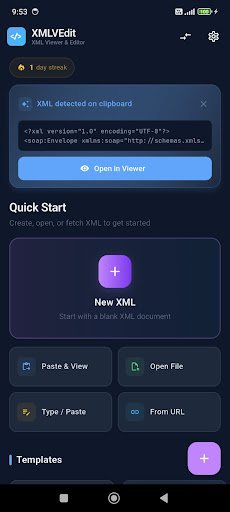
Download XML Viewer & Editor — Opens any XML file without blank screens.
How to Search Inside an XML File on Mobile
Desktop XML editors have a "Find" feature. On mobile? It's either missing or useless. You open a 500-line configuration file, need to find one tag, and end up scrolling forever.
Mobile constraints are real: no physical keyboard for Ctrl+F shortcuts, small screens that show only 20-30 lines at once, and no standard search UI in Android's basic text views. Many editors give up and ship without search.
The Right Approach
A proper mobile XML search tool needs:
- Regex support — because sometimes you need to find all elements or all attributes matching a pattern.text
<key> - Case-insensitive toggle — XML is technically case-sensitive, but humans often search loosely.
- Instant results — search as you type, highlight all matches in the viewport, not just "next match."
- Jump to occurrence — show a match count ("5 of 23") and let you jump to any match, not just scroll through them.
Most mobile editors skip these because they require rebuilding the UI layer to display highlights. The overhead is real, but it's the difference between usable and frustrating.
With XML Viewer & Editor, the search feature displays all matches at once, highlights them inline, and lets you jump directly to any occurrence. No scrolling, no guessing.
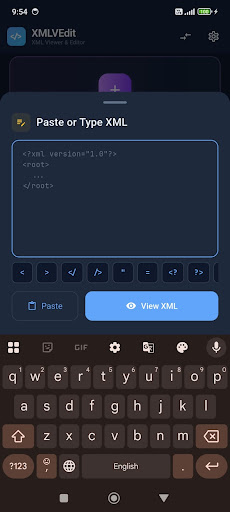
Download XML Viewer & Editor — Find any text instantly with full-file highlighting.
Editing XML Without Breaking the Schema
This is where editors really stumble. Editing on mobile is cramped: a small text box, autocorrect fighting you, fat fingers hitting the wrong character. Add XML's unforgiving syntax—one missing
>Common Disasters
- Self-closing tag bugs: User converts totext
<tag></tag>, but the editor doesn't update the parent structure, leaving the file malformed.text<tag/> - Quote mismatch: Attributes require matched quotes. A user changes totext
attr="value"(missing closing quote), and the parser chokes.textattr="value - Namespace violations: XML namespaces (xmlns declarations) are fragile. An editor that lets you edit freely can break the namespace bindings without warning.
- Indentation collapse: When a user edits inside a nested element, careless editors reflow the whole document, losing formatting that might be semantically important.
Syntax Assistance
A good editor prevents these by:
- Auto-closing tags: When the user types , the editor automatically appendstext
<tagname>. This single feature eliminates the majority of syntax errors.text</tagname> - Real-time validation: Parse the file after every keystroke and highlight errors immediately. Show a red line under the broken tag instead of waiting until save.
- Attribute autocomplete: When editing an attribute, offer a list of valid attributes for that element based on schema awareness (if a schema is available).
- Format on save: Let the user edit with loose spacing, then reformat to clean indentation before saving.
XML Viewer & Editor includes auto-close tags, real-time error detection with syntax highlighting, and a format button that re-indents your entire file while preserving all content. You can edit confidently knowing the file won't silently break.
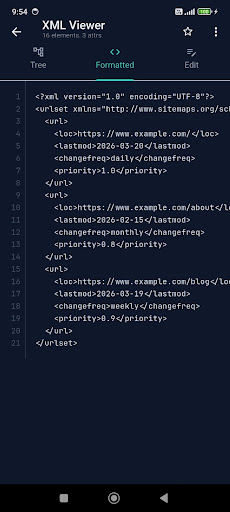
Download XML Viewer & Editor — Edit safely with auto-closing tags and real-time validation.
Validating XML on Android
You edited your file, it looks correct, but is it actually valid? On desktop, you'd run an online validator or open it in a proper IDE. On Android, that's not practical—your file might be private, too large to upload, or you simply don't have a browser handy.
What Validation Actually Means
XML validation checks:
- Well-formedness: Matching tags, proper nesting, valid characters, no syntax errors. Every XML parser does this automatically.
- Schema conformance: If the XML has a schema (DTD, XSD), does the content match? Required elements present? Attributes the right type? This is optional but crucial for configuration files and API payloads.
- Semantic validity: Some errors are structural (a tag is misspelled) and some are semantic (a date attribute contains a number instead of a date string). Basic validation catches syntax; schema validation catches semantics.
On-Device Validation
A mobile validator should:
- Report every error with a line number and description
- Differentiate between fatal errors (the file won't parse at all) and warnings (quirks that might be intentional)
- Provide hints for fixes where possible
Most editors on the Play Store validate, but they don't report results clearly. You're left staring at an error message like "Parser error" with no line number.
XML Viewer & Editor runs validation on-device, lists every error with a line number, and highlights the problem line in the editor. If you have a schema file (XSD), you can load it to validate against schema rules as well.
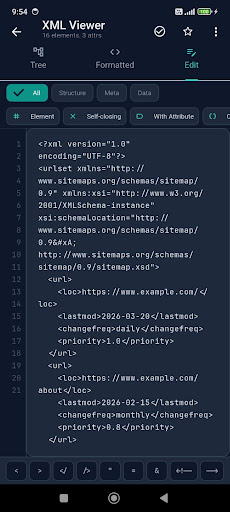
Download XML Viewer & Editor — Validate XML against syntax and schema rules offline.
Summary: The XML Editor You Actually Need
Handling XML on mobile is annoying. Files don't open, searches don't work, editing breaks things, and validation is vague. These aren't edge cases—they're the core problems that make mobile XML editing frustrating.
If you edit XML files on your Android phone—configuration files, API responses, documentation, or build outputs—the tool you use should handle encoding, provide search, prevent syntax errors, and validate results. That's what I use XML Viewer & Editor for, and it's why it's the one I recommend.
Get XML Viewer & Editor now and edit XML on Android without fighting your phone.