Want to draw a flowchart on your Android phone and keep it alongside your notes? Mermaid describes diagrams as text, so you can change a label or add a branch without dragging boxes around a small screen.
This guide uses Markdown Editor & MD Viewer, made by us at Cosmovex. It walks through a support-ticket flowchart that you can adapt for an assignment, README or project document. The app includes an on-device Mermaid renderer and a diagram studio; no online diagram service is needed for this workflow.
Get Markdown Editor & MD Viewer on Google Play.
Start with a small diagram
Open or create a Markdown document. Find Mermaid diagram in the editor's tools to open the diagram studio. Its code area accepts Mermaid syntax directly, without the surrounding Markdown backticks.
Paste this example:
flowchart TD
    A[New support ticket] --> B{Can we reproduce it?}
    B -->|Yes| C[Write a fix]
    B -->|No| D[Ask for more details]
    D --> B
    C --> E[Review the change]
    E --> F[Ship the update]
The result should show a decision with two paths. A reproducible issue moves toward a fix; an issue that needs more information loops back to the decision.
Change New support ticket to the start of your own process, then rename the other labels. Keep the first diagram small enough to read on a phone.
Understand the pieces you are editing
flowchart TD sets the direction from top to bottom. Use flowchart LR if a left-to-right layout fits your document better. Square brackets make a process box; braces make a decision. The -->|Yes| connection labels an arrow.
The letters identify nodes. Reusing B connects to the same decision rather than creating another copy. That is why D --> B forms a loop. Mermaid's official flowchart reference covers more shapes and connections.
Keep the diagram inside your Markdown file
Choose Insert in the studio to put the diagram into your document. The app stores its source in a fenced Mermaid block, so the diagram stays editable text.
If you prefer to type directly in the Markdown source, include the opening and closing fences:
```mermaid
flowchart TD
    A[Draft] --> B[Review]
    B --> C[Publish]
```
The rendered document shows the diagram. Tap a diagram in the preview to reopen its source in the studio. Save the document as a .md file so you retain the diagram source as well as the surrounding explanation.
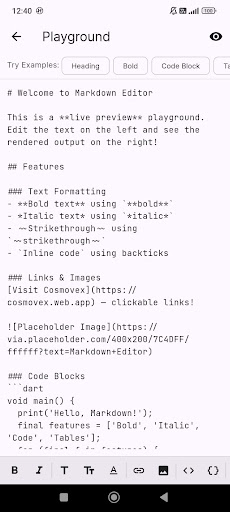
The store screenshot above shows the Markdown source editor; the diagram workflow uses the Mermaid diagram tool.
Export a diagram for another document
The diagram studio includes Export SVG. Use this when you want to place the diagram into another application that accepts SVG. Keep the Markdown file too: the SVG is the visual output, while the Mermaid block is the source you can edit later.
You can also export the surrounding document as HTML or PDF. Check the exported file before sharing it, particularly when a diagram is wide or contains long labels.
If you see code instead of a diagram
Check that the opening fence says mermaid, that it has three backticks, and that the closing fence is on its own line. In the diagram studio itself, paste only the diagram code, beginning with flowchart TD.
If parsing fails, return to the small example above and add your changes one line at a time. Match every bracket and brace. As Mermaid's documentation notes, avoid using lowercase end as a flowchart node label; use End instead.
Free version and Pro
The app is free to download and contains ads. Core Markdown editing and live preview are free. Diagram Studio usage is metered in the free version; Pro enables unlimited use. Free PDF and HTML exports have limits and a footer. Pro is offered as a monthly subscription or a one-time purchase. Check the upgrade screen for current terms and local pricing.
See Markdown Editor & MD Viewer, or download the Android app.